
AnyPortrait > Forum > How to Use
I want to change the MeshGroup order in a specific animation
- This topic has 2 replies, 2 voices, and was last updated 3 weeks, 6 days ago by
 DryreL.
-
AuthorPosts
-
March 10, 2026 at 4:09 pm #1586
 DryreL
Hi RainyRizzle,
I have a Mesh Group with many layers inside. I’ve made some custom presets using the morph controller. Here’s the two animations:
Idle -> Mesh Group in front (default state)
Attack -> Mesh Group in the background (new / desired state)I want to move this mesh group down one position in a specific animation (for example, the Attack animation). This way, for that animation only, it will be in the background (bottom) and the mesh in front (top) will come to the forefront.
How can I do this? Is there such a feature?
Thanks in advance.
March 11, 2026 at 2:46 am #1587 RainyRizzle
Hi!
If you want to change the order of mesh groups (i.e., the rendering order) according to the animation, you can use “Extra Option.”
Enabling “Extra Option” for modifiers that support color animation (Morph, Transform, Color Only) allows you to change the rendering order or image of the target.To apply the Extra Option, we recommend using the Control Parameter and Color Only modifiers.
We’ll explain how to create it with a simple example.
(If the image is too small, open it in a new tab.)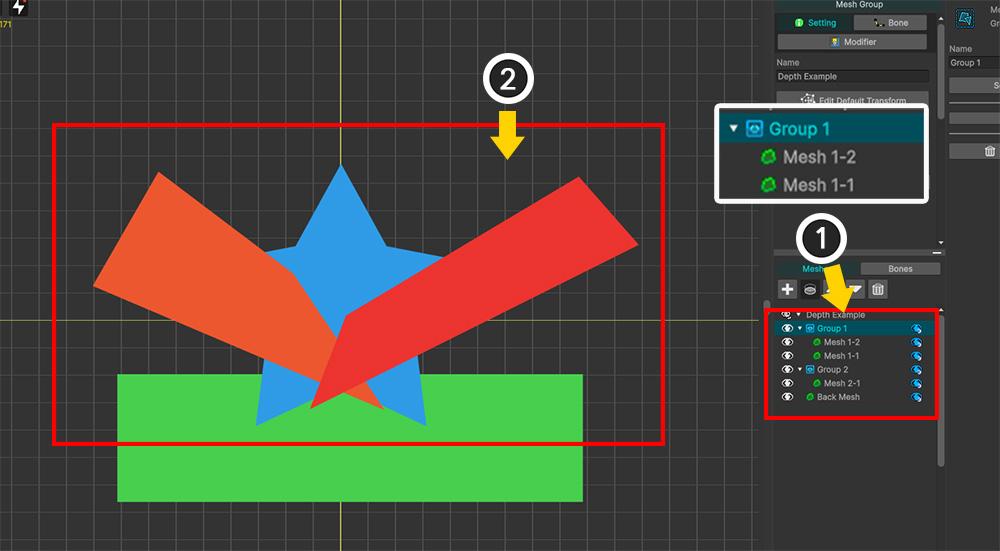
Here’s a prepared example.
(1) Within a mesh group, there are sub-mesh groups and meshes.
(2) The target meshes are two red meshes, and these two meshes belong together within a sub-mesh group called “Group 1.”
If you change the rendering order of “Group 1,” the order of the red meshes will change across the board.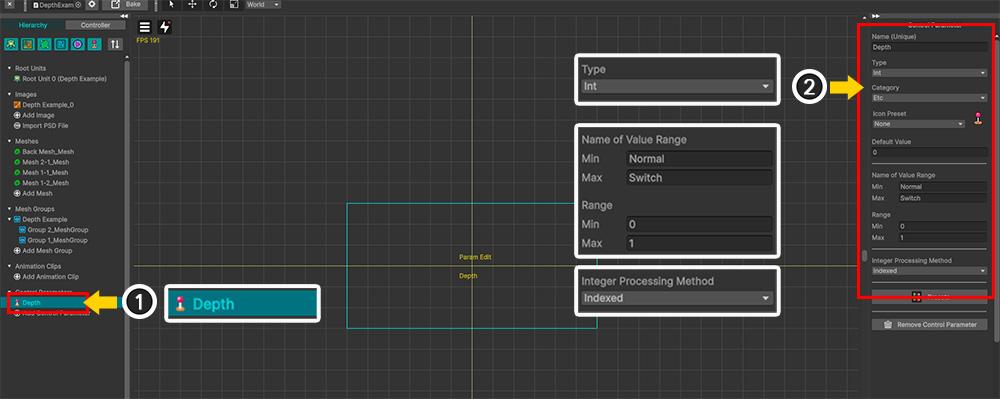
(1) Create a Control Parameter named “Depth.”
(2) The properties of the Control Parameter are as follows:– Type : Int
– Range : 0 (Normal) ~ 1 (Switch)
– Integer Processing Method : IndexedNote)
For the “Integer Processing Method”, please refer to the following manual.
https://rainyrizzle.github.io/en/AdvancedManual/AD_IndexedParameter.html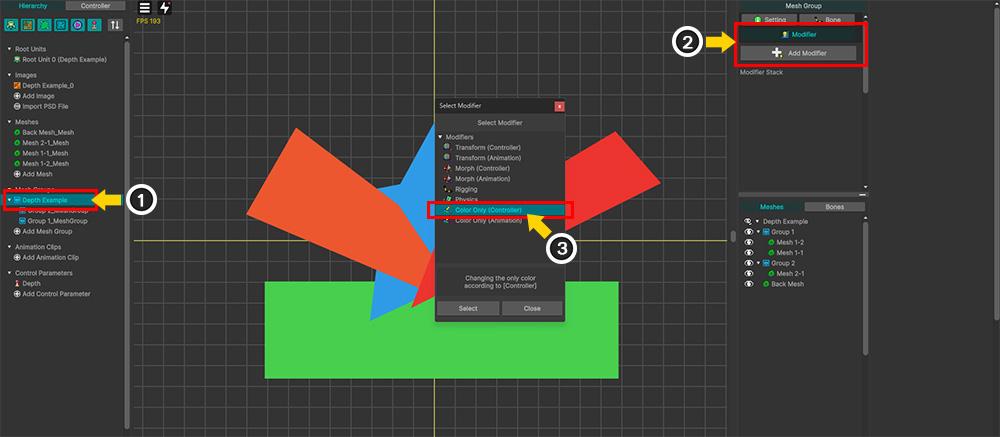
(1) Select the mesh group.
(2) Select the Modifier tab and click the Add Modifier button.
(3) Select and add the “Color Only (Controller)” modifier.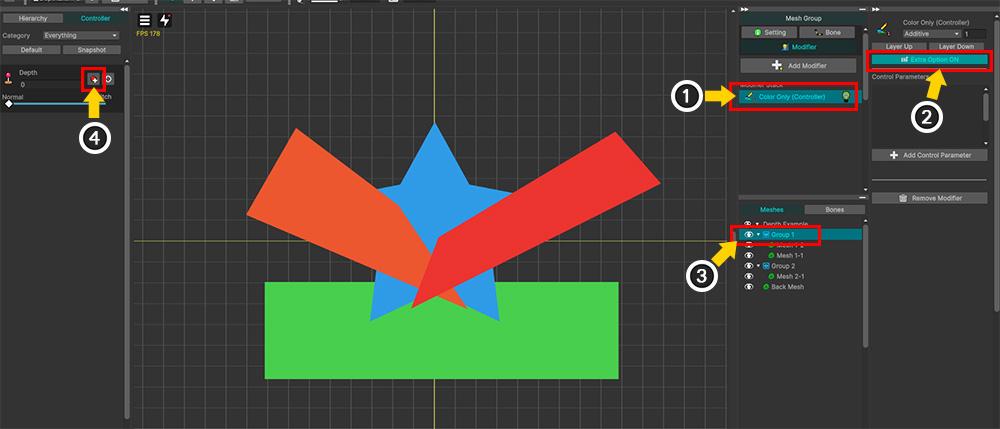
(1) Select the added “Color Only” modifier.
(2) Click the “Extra Option” button to activate it.
(3) Select “Group 1,” the target sub-mesh group.
(4) In this state, click the Add Key button for the “Depth” control parameter.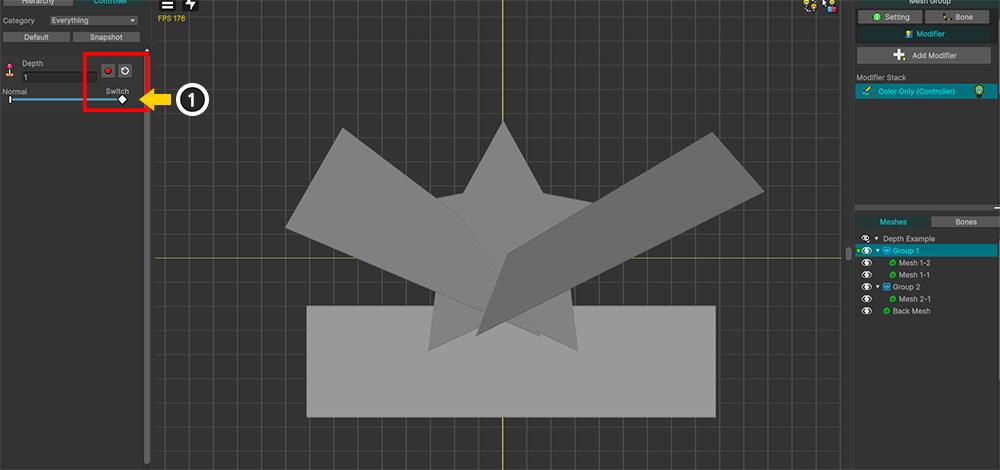
(1) Add a key after changing the value of the “Depth” control parameter to 1.
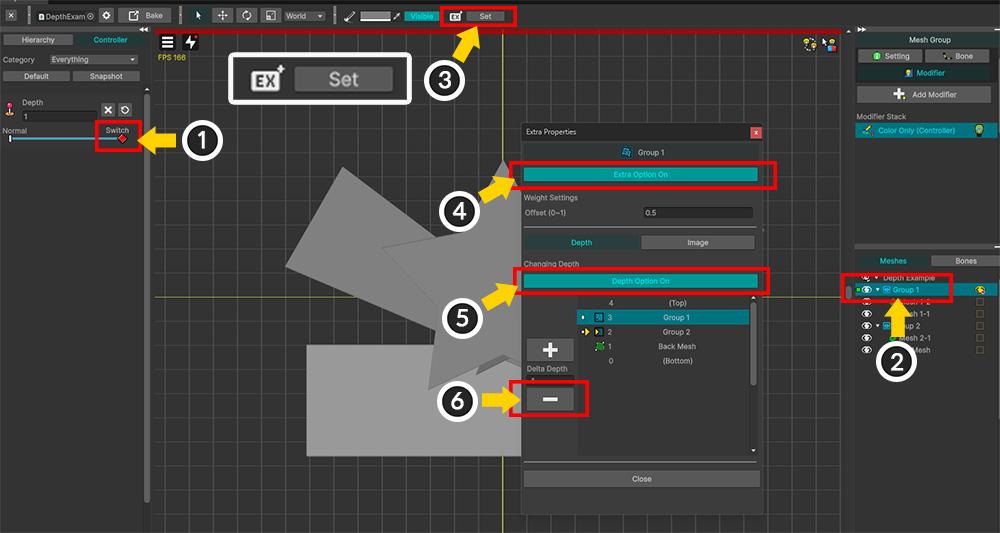
(1) With the “Depth” control parameter set to 1, (2) select “Group 1.”
(3) Click the “Set” button next to the “Ex” icon at the top of the screen.
(4) Click the “Extra Option” button to activate the “Extra Option” setting for this key (“1”).
(5) With the “Depth” tab selected, click the “Depth Option” button to activate it.
(6) Change the rendering order by pressing the “+” or “-” button. In this example, pressing the “-” button causes the selected “Group 1” to be rendered one step behind.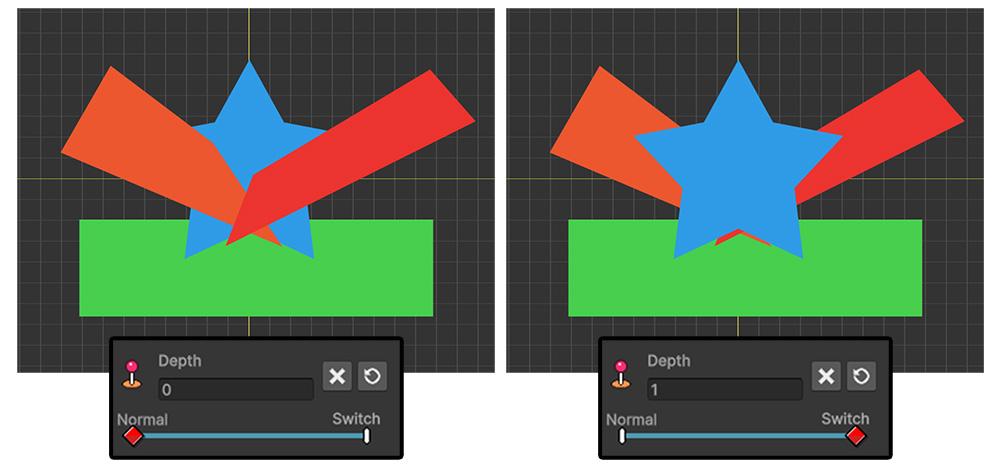
You can now see the order of the two red meshes in “Group 1” change depending on the value of the control parameter.
The next step is to change the rendering order of “Group 1” for each animation.
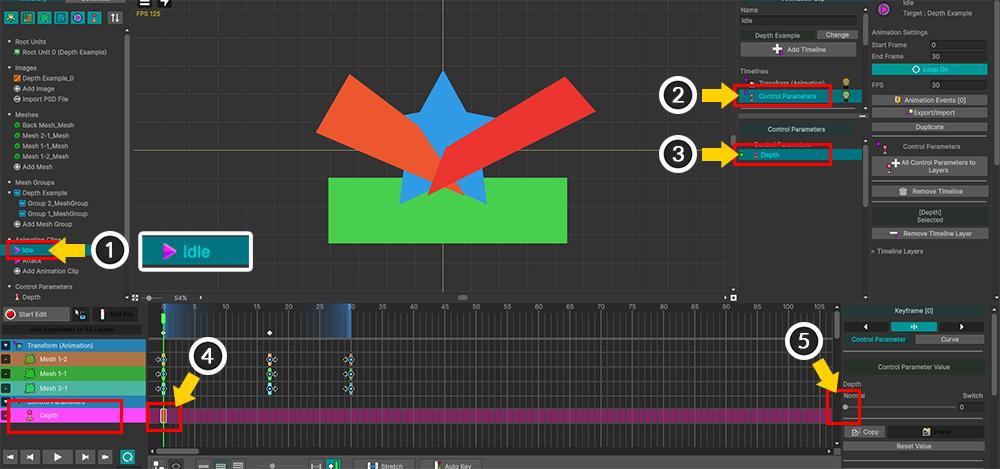
(1) Select the default “Idle” animation.
(2) Add a “Control Parameter” timeline.
(3) Add the “Depth” control parameter as a timeline layer.
(4) Add a keyframe to the first frame of the “Depth” timeline layer.
(5) Set the value of the added keyframe to the default value of “0 (Normal)”.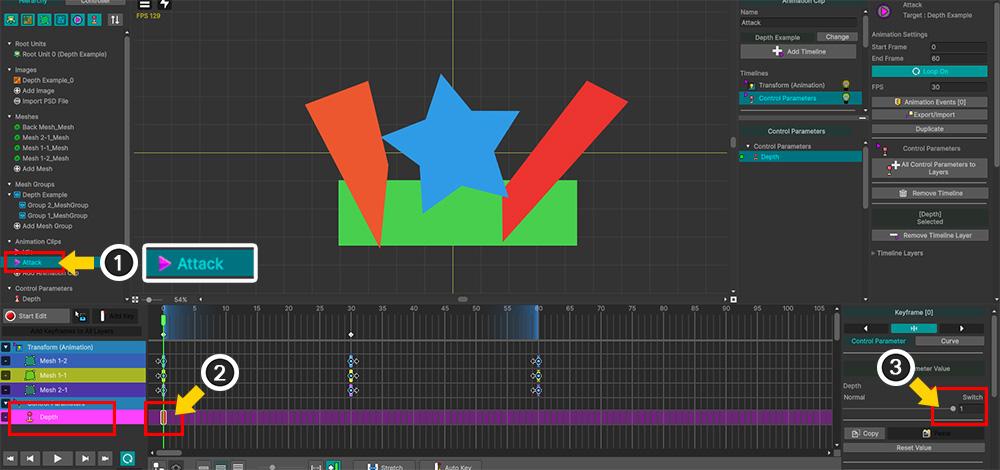
(1) Select the “Attack” animation.
(2) Follow the same steps as described above to add a keyframe to the first frame of the “Depth” timeline.
(3) Change the keyframe’s value to “1 (Switch)”.
Now, let’s bake and play the animation in the scene.
You’ll see that the rendering order of “Group 1” and its child meshes changes depending on the animation.You can find detailed information about “Extra Option” in the following manual.
https://rainyrizzle.github.io/en/AdvancedManual/AD_ExtraOption.htmlIf we misunderstood your problem or if it doesn’t resolve it, please leave a comment!
Thank you.March 11, 2026 at 10:07 pm #1588DryreL
Thanks, I will try!
-
AuthorPosts
- You must be logged in to reply to this topic.